How to Move WordPress Using Duplicator
Move a WordPress site with Duplicator. Build the backup, deploy the installer, connect the database, and test the finished migration safely.
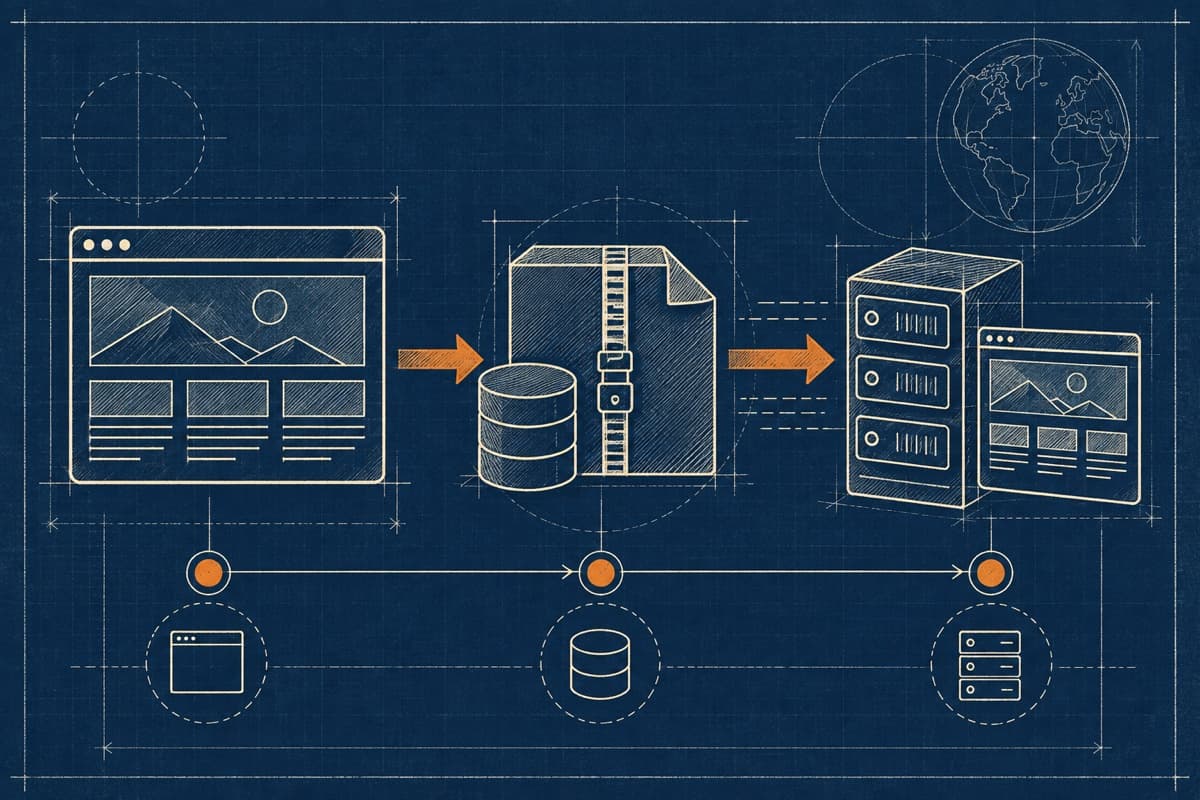
Duplicator is built for moving a WordPress site to an empty directory without installing WordPress first. It creates two files: a site archive and a matching installer. Upload both, run the installer, and the site deploys.
This guide follows Duplicator's classic installation method. It works reliably if you take the database and security steps seriously.
What You Need
- Admin access to the source site
- File manager, SFTP, or FTP access to the destination
- A new destination database and database user
- Database host, name, username, and password
- A full backup stored away from both servers
If the site takes orders, memberships, or form entries, pause them briefly before the final copy.
Step 1: Build the Duplicator Backup
Install and activate Duplicator on the source site. Go to Duplicator → Backups. Create a new backup. Let the plugin scan the site.
Read the scan results. Don't dismiss warnings automatically. Large cache folders, old backups, and server limits can make the package too heavy. Exclude disposable cache files. Don't exclude uploads or custom files the site actually uses.
Build the backup. When it finishes, download both the archive (usually .zip or .daf) and the installer file.
Step 2: Prepare an Empty Destination
Point the destination domain or a temporary test domain to the correct document root. The classic installer works best in a clean directory.
Create a new database and a database user with the required privileges. Save the credentials privately. Don't post them in screenshots or support threads.
If files already exist in the destination folder, confirm they don't belong to another site before clearing anything. An empty-looking folder isn't always empty.
Step 3: Upload the Archive and Installer
Upload both files into the destination directory using your host's file manager or SFTP. They need to be in the same folder.
Open the installer URL in a browser. Depending on the generated filename, it may look like:
https://example.com/installer.phpDuplicator may use a hashed installer name. Use the exact filename that came with your backup.
Step 4: Validate the Server and Database
Let Duplicator validate the destination. Review failures and warnings before continuing. A PHP version mismatch, missing extension, file-permission issue, or limited extraction method is easier to fix now than after deployment.
Enter the new database details. Test the connection. Read the database action carefully. An option that removes existing tables is only safe when you're certain this is the correct, dedicated database for the new site.
Proceed with the installation. Let the archive and database deploy.
Step 5: Review the New URLs
Duplicator detects the destination URL and applies it during installation. Confirm the domain, scheme, and path before accepting the final settings.
After the installer finishes, sign in and let Duplicator complete its cleanup. If the new site uses a different domain or directory, check navigation, media, widgets, and page-builder content for old URL references.
Step 6: Test and Secure the Result
Test more than the homepage:
- Open several posts and pages
- Sign in and out of WordPress
- Submit forms and check email delivery
- Inspect images and downloads
- Save permalinks and test an inner URL
- Test checkout and payments in safe mode if applicable
- Review PHP and Duplicator installer logs for errors
Delete the installer and archive from the public server after confirming the move. Duplicator warns that leaving installer files accessible is a security risk.
If the Installer Times Out
Large archives can exceed the server's execution limits during extraction. Duplicator documents alternative extraction modes and manual extraction for this. Security plugins or server firewalls can also block the installer.
Work from the installer log. Change one thing at a time. Keep the source backup intact. If the deployment finishes but the site is broken, use the post-migration repair checklist.
Before You Delete Anything
Duplicator gives you more control than a dashboard import, but that control comes with responsibility. Verify the directory, database, and installer options before continuing. A few careful checks prevent most migration mistakes.
Keep the original site and backup until the new site has been stable for several days.
Share