WordPress "Not a Valid JSON Response" Error: How to Fix It
Fix the WordPress "not a valid JSON response" error by saving permalinks, checking site URLs, testing the REST API, and whitelisting firewall rules.
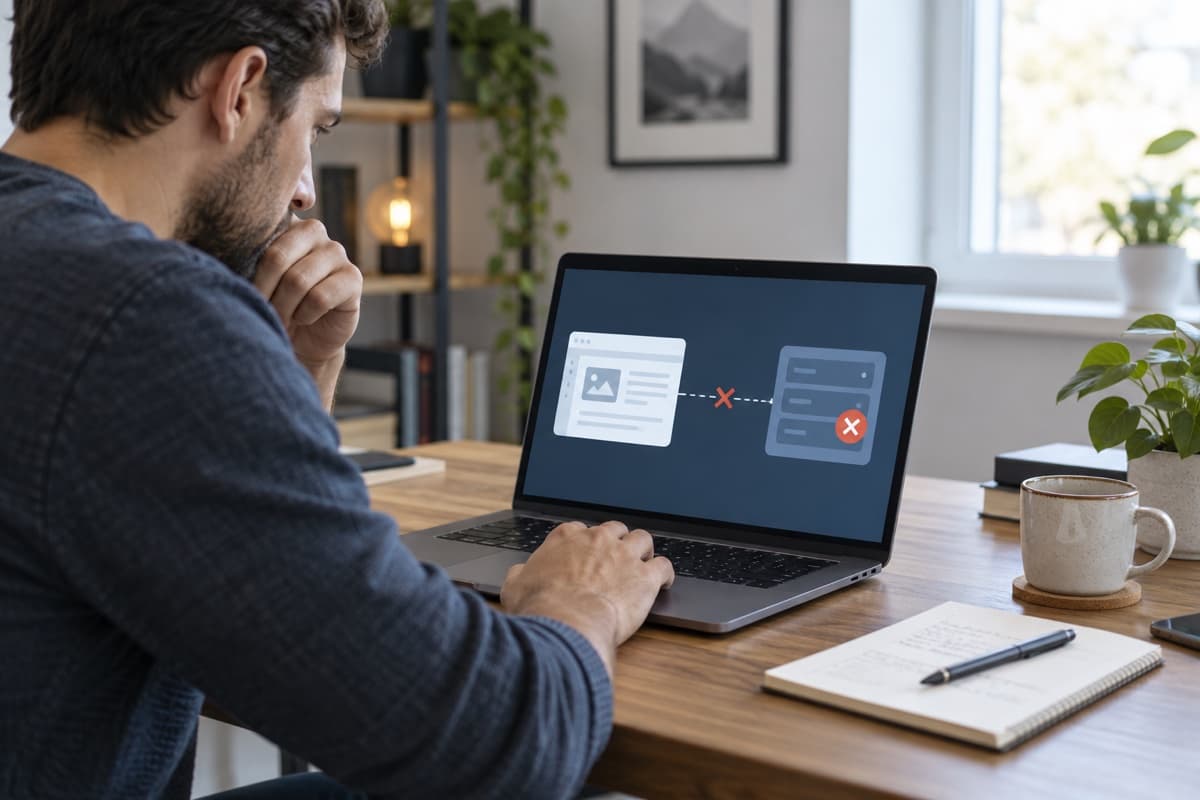
You edit a page, click Update, and WordPress says: "The response is not a valid JSON response." The block editor expected JSON from the REST API and got an error page, redirect, or blocked request instead.
Back up the site. Note whether it happens on every page or just one. Then work through the fixes below in order.
1. Save the Permalinks Screen
Go to Settings → Permalinks. Don't change anything. Click Save Changes.
That refreshes WordPress rewrite rules. Try updating the post again. This fixes the error more often than anything else on this list.
2. Check Both Site URLs
Go to Settings → General. The WordPress Address and Site Address must match exactly. Same domain. Same https://. Same www or no www.
A mismatch between http:// and https:// redirects REST API requests and breaks the editor.
Don't change these on a live site unless you're sure. If you break them, you may lose dashboard access.
3. Test the REST API Directly
Open your browser and visit:
https://yourdomain.com/wp-json/You should see a JSON document. If you see:
- A login page — a security plugin is blocking REST API access
- A 403 or 404 — permalinks or server rules are broken
- A hosting error page — the server is misconfigured
Also check Tools → Site Health for a REST API error.
4. Check Security Rules
Firewalls and security plugins block REST API requests. Common culprits:
- Wordfence (check the firewall rules)
- Cloudflare WAF
- ModSecurity blocking
POSTorPUTrequests - A plugin that requires login for
/wp-json/
Ask the host to check ModSecurity logs. A rule blocking POST requests to /wp-json/wp/v2/ is the usual cause.
Don't disable the firewall entirely. Whitelist the REST API path instead.
5. Clear Caches
Clear the browser, caching plugin, server, and CDN caches. An old cached response can return the wrong content even after the error is fixed.
Test in a private window after clearing.
6. Run a Quick Plugin Test
On staging, deactivate all plugins except the ones required to load the editor. Try updating a page.
If it works, reactivate plugins one at a time. The plugin that breaks the editor is the problem.
Start with security, caching, and optimization plugins.
If It's Still Broken
Ask the host to check the PHP error log at the exact time the update fails. A PHP warning printed into the response corrupts the JSON and triggers this error.
Once the editor works, test three things:
- Update an existing page
- Create a new post
- Upload an image
If all three work, remove any temporary debugging or firewall exceptions you added.
Share