How to Fix “Error Establishing a Database Connection” in WordPress
Seeing a database connection error on your WordPress website? Work through these checks to find the cause and restore your site safely.
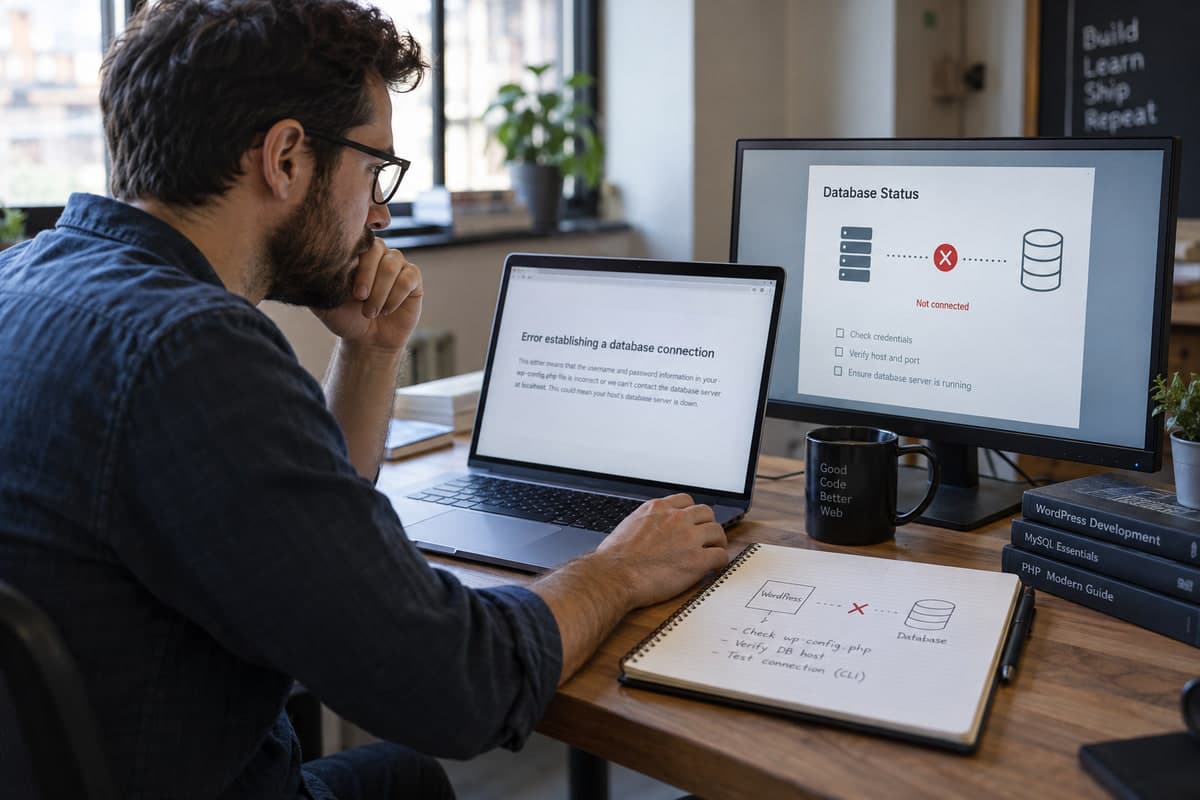
The whole site is replaced by one line: "Error establishing a database connection." In plain terms, WordPress can't reach the database where your posts, pages, and settings live. It doesn't mean the data is gone. It means the connection failed.
The cause is usually one of four things: wrong credentials in wp-config.php, the database server is down, the database user lost permission, or the tables are damaged. Work through them in order. Don't change several things at once.
Quick Checks to Diagnose the Database Error
- Check your hosting status page. If the database server is down, nothing you change in WordPress will help.
- Open
wp-config.phpand compare the credentials with your hosting panel. - Check the PHP error log. Look for a MySQL error code.
- If the site was recently migrated or the password changed, start with the credentials.
Fix 1: Check the Credentials in wp-config.php
Open wp-config.php in your WordPress root folder. Check these four lines:
define( 'DB_NAME', 'your_database_name' );
define( 'DB_USER', 'your_database_user' );
define( 'DB_PASSWORD', 'your_database_password' );
define( 'DB_HOST', 'localhost' );
Compare each value with your hosting panel (cPanel, Plesk, or the host's dashboard). A single extra space, a typo, or an old password breaks the connection. If the site was recently migrated, confirm the database user still has permission on the new database.
Don't paste real credentials into support forums or screenshots.
Fix 2: Check the Database Server
If the credentials are correct, the server may be down. Open your hosting status page or control panel. If other sites on the same account are also failing, it's a hosting problem. Contact support.
Check the PHP error log for one of these MySQL codes:
1045 — Access denied for user→ wrong username or password1049 — Unknown database→ wrong database name2002 — Can't connect to local MySQL server→ wrong DB_HOST or server down1040 — Too many connections→ resource limit hit
Each code points to a different fix. Match the code before changing anything.
Fix 3: Check DB_HOST (Common on Managed Hosts)
Not every host uses localhost. Kinsta, WP Engine, SiteGround, and some cPanel setups use a specific database hostname, an IP address, or 127.0.0.1.
Check your hosting panel for the correct value. If a migration or host change recently happened, this is often the cause.
From WP-CLI, you can test the connection directly:
wp db check
wp db query "SELECT 1"
If those fail, the credentials or host are wrong.
Fix 4: Repair Damaged Tables
WordPress includes a repair tool, but use it only when your backup is ready. Add this line above the “stop editing” comment in wp-config.php:
define( 'WP_ALLOW_REPAIR', true );
Then visit /wp-admin/maint/repair.php and choose the repair option. Remove the line from wp-config.php immediately afterward because the repair page does not require a login while enabled.
The official WordPress common errors guide also recommends checking configuration details and hosting problems when this error appears.
Fix 5: Check User Permissions and Connection Limits
If the username and password are correct but the user lost access to the database, you'll see a 1045 error. This can happen after a host migration, a panel change, or a manual password reset.
In cPanel or phpMyAdmin, open MySQL Databases or Users. Confirm the user is assigned to the database with All Privileges.
If you see 1040 — Too many connections, the database hit its connection limit. Ask your host to raise the limit or check what's consuming connections. A traffic spike, a runaway plugin, or a backup script can cause this.
After the Fix: Test the Site
Once the connection works, test:
- The homepage
- A few posts and pages
- The dashboard
- A form or checkout if you use one
Clear caches only after confirming the database works. If the problem happened during a migration, also check our guide on fixing a WordPress site after migration.
That's It
Most database connection errors come down to credentials, the DB_HOST value, or the database server being unavailable. Work through the fixes in order. Change one thing at a time. Back up before editing files.
Share