How to Fix the “There Has Been a Critical Error” in WordPress
Learn how to identify the plugin, theme, PHP, or memory problem behind a WordPress critical error and restore the website safely.
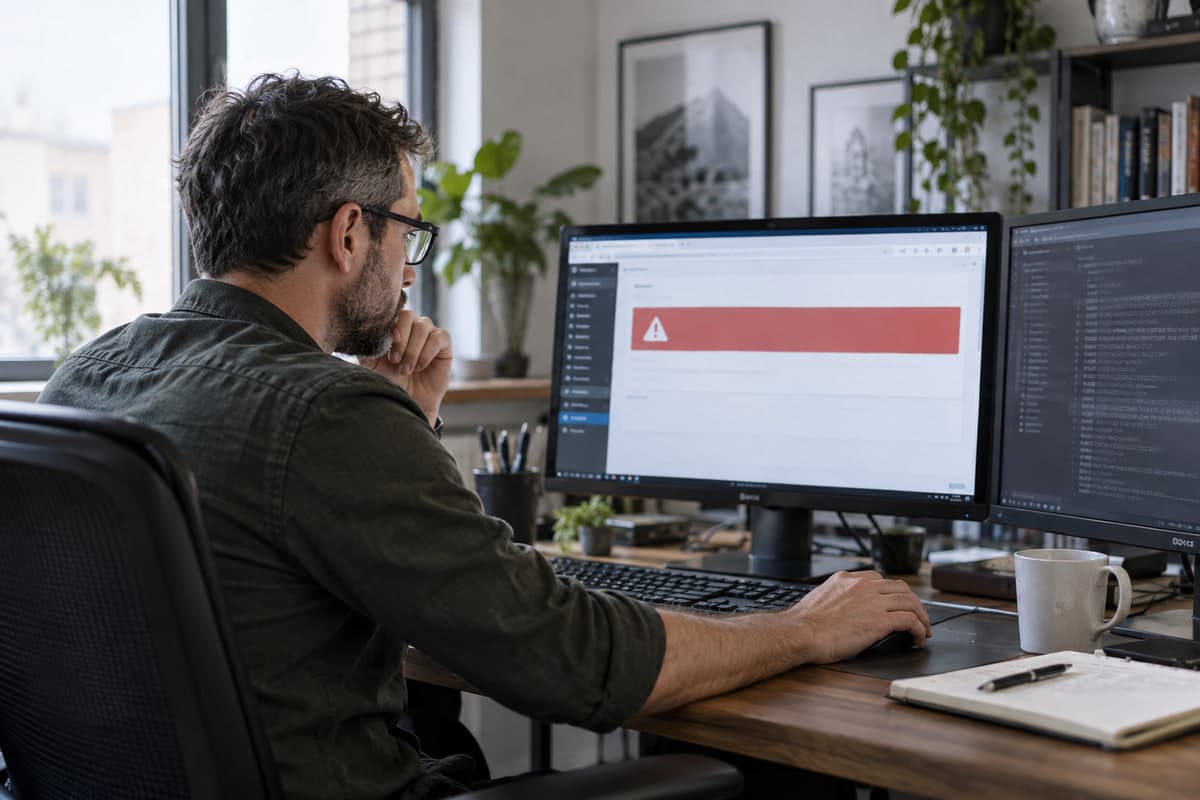
The WordPress message “There has been a critical error on this website” usually means PHP stopped while processing a request. Visitors see a short warning, but the useful details are normally stored in an email or error log.
Do not start deleting files. First protect what you have, then look for evidence.
Create a Backup or Snapshot
If your host provides on-demand snapshots, create one before troubleshooting. Back up both files and the database. Even when the site is already failing, a snapshot preserves its current state and makes it easier to reverse an unsuccessful change.
Write down what happened immediately before the error—an update, new plugin, theme edit, PHP change, or import.
Look for the Recovery Mode Email
WordPress may email the site administrator with the name of the plugin or theme that triggered the fatal error and a special Recovery Mode link. Check the administrator inbox and spam folder.
Recovery Mode lets an administrator sign in while the faulty component remains paused for that session. Disable or update the identified component, then test the website. The official Recovery Mode documentation explains how this protected session works.
Disable the Most Likely Plugin
If the email names a plugin, deactivate it from the dashboard. When the dashboard is unavailable, use SFTP or the hosting file manager to open wp-content/plugins and rename only that plugin’s folder.
If no plugin is identified, rename the whole plugins directory temporarily. When the site returns, restore the directory name and reactivate plugins one at a time. Make these tests on staging when possible.
Test the Active Theme
A theme can fail after a PHP or WordPress update. Temporarily switch to a current default WordPress theme. Without dashboard access, you may need your host or a developer to change the active theme through WP-CLI or the database.
Do not delete the active theme until you have a working replacement and backup.
Read the Error Log
Your hosting dashboard may provide a PHP error log. For controlled troubleshooting, WordPress can also write errors to wp-content/debug.log when WP_DEBUG and WP_DEBUG_LOG are configured in wp-config.php.
Do not leave debug messages visible on a live website; logs may expose paths or other sensitive details. The official WordPress debugging guide explains the available constants.
Look at the newest fatal error and note the file path, line number, and error type. The path often identifies the responsible plugin or theme.
Check PHP Compatibility and Memory
Confirm that your WordPress version, theme, and plugins support the PHP version selected by your host. If the log says memory is exhausted, increasing the limit may restore access, but it can also hide an inefficient plugin. Treat memory as a clue, not automatically the root cause.
Test Before Closing the Issue
Check the homepage, dashboard, forms, login, and any store functions. Re-enable components one at a time and monitor the error log. If a paid plugin caused the issue, send its developer the exact error and version details without sharing passwords.
Conclusion
A critical error is usually recoverable when you follow the evidence. Use Recovery Mode or the PHP log to identify the failing component, make one change at a time, and keep a restorable backup throughout the process.
Share