How to Move WordPress to a New Hosting Provider
Move WordPress to a new host with minimal downtime by copying and testing the site before DNS changes, then monitoring the launch carefully.
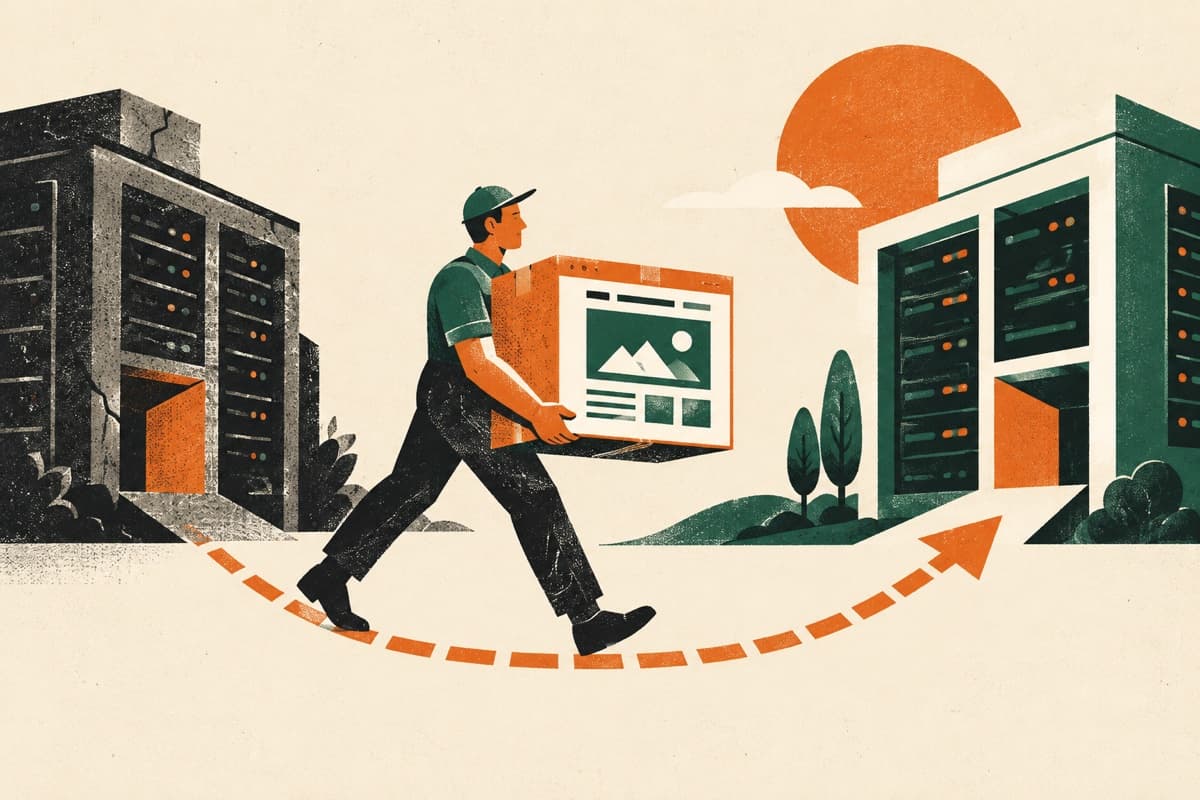
Changing hosts doesn't require a long maintenance page. When the domain stays the same, build and test a full copy on the new server first. Then point DNS at it. WordPress's migration documentation supports keeping URLs unchanged when only the server changes.
The transfer is the easy part. Preserving email, SSL, cron jobs, recent orders, and a route back to the old host is what actually matters.
Pick a Quiet Window
Check traffic patterns. Pick the slowest hour. If you control DNS TTL, lower it a day or two before launch. That helps propagation move faster when you flip the record.
For a blog or brochure site, tell editors to stop publishing near launch. For a store or membership site, plan a short read-only window so new orders and users don't get stranded on the old server.
Back Up More Than WordPress
Create a full WordPress backup. Then write down everything else tied to the hosting account:
- DNS records
- Email mailboxes and routing
- SSL configuration
- Cron jobs
- PHP version and extensions
- Redirect and security rules
- CDN and firewall settings
- Staging sites and subdomains
A migration plugin moves WordPress. It doesn't move your email or DNS.
Prepare the New Host
Add the domain. Create the destination site. Don't change public DNS yet.
Match the PHP version initially. Confirm enough disk space. Pre-provision SSL if the host supports it.
Use the host's temporary URL, preview function, or a local hosts-file entry to access the new server privately. Temporary URLs confuse WordPress if it treats them as the permanent site address. Follow the host's preferred preview method.
Copy WordPress to the New Server
Options:
- All-in-One WP Migration — direct file export and import
- Duplicator — installer plus empty destination
- UpdraftPlus — backup-led move
- Migrate Guru — reduces source-server load on large sites
Treat the first migration as a test copy. Don't cancel the old host or point visitors to the new server yet.
Test Everything Before Switching
Don't just load the homepage. Check:
- Posts, pages, archives, and 404 handling
- Images, PDFs, and video embeds
- Admin and customer logins
- Forms and email delivery
- Search and scheduled tasks
- Caching and performance
- Checkout, payment sandbox, tax, shipping, and order emails (if WooCommerce)
Check the PHP error log and browser console. Compare server headers and redirects with the live site.
Synchronize Late Changes (The Part Everyone Underestimates)
If content or transactions continued after the test copy, move those changes before launch.
For a simple blog, a second full database copy works. For a busy WooCommerce or membership site, this is risky. Replacing the database discards orders or users created on the new server during testing.
Put the old site into a short maintenance or checkout-disabled window for the final sync. Then verify the new copy again before pointing DNS.
Change DNS
Update the relevant DNS records to the new server. Keep the old hosting online while caches expire. Different visitors may hit different servers during propagation.
Verify SSL on the new host. Purge caches. Test the public domain from another network. Confirm forms and transactional emails arrive from the new environment.
Watch Before Cancelling the Old Host
Monitor uptime, error logs, performance, analytics, email, payments, and background jobs for several days.
Keep a fresh backup on the new host plus an independent copy elsewhere.
Cancel the old plan only after traffic has moved, the site is stable, and email and DNS services have been transferred. Keeping the previous server online for a week costs almost nothing compared with recovering a missing database table.
Before You Pull the Plug
A low-downtime move is mostly sequencing: copy, preview, test, sync, change DNS, monitor. Don't cancel the old host just because the homepage loads on the new one. Wait until email, forms, and payments all work from the new environment.
Share