How to Use WordPress Site Health to Find Website Problems
Learn how to read WordPress Site Health, prioritize critical issues, and use its technical information when troubleshooting your website.
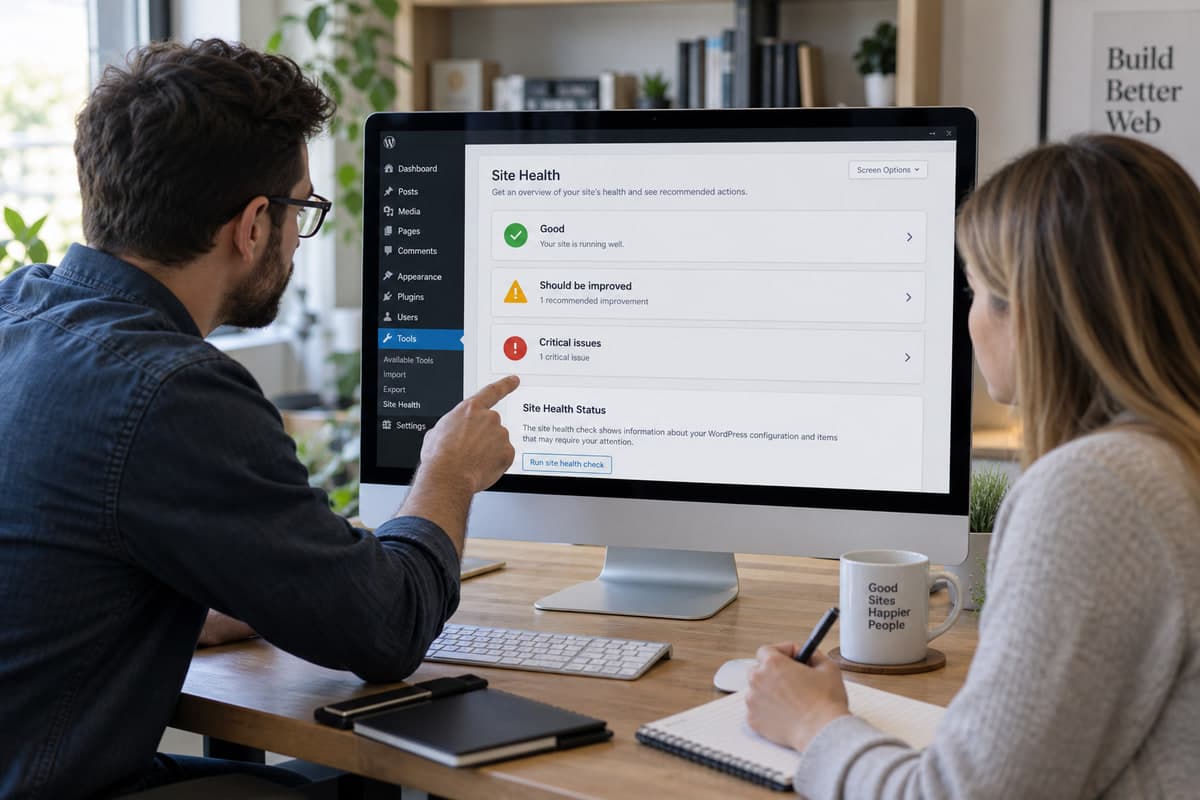
WordPress has a built-in diagnostic screen most site owners never open. Tools → Site Health won't fix anything for you, but it can tell you what's wrong: outdated PHP, failed background tasks, blocked REST API calls, missing modules, and server limits. Treat it as a starting point—not a score to chase.
First: Open the Status Tab and Read the Messages
Go to Tools → Site Health → Status. WordPress sorts results into three groups:
- Critical issues — fix these first. Security, failed updates, broken REST API calls.
- Recommended improvements — lower priority. Often depends on your host.
- Passed tests — nothing to do.
Don't scroll past the critical issues. Read each message. The exact wording tells you where to look.
Fix in This Order
- Security issues and exposed debug information
- Failed updates or an obsolete PHP version
- Broken REST API or loopback requests
- Missing required PHP modules
- Performance recommendations
Back up the site before changing PHP, plugins, or server config. Fix one item. Reload Site Health. See if it cleared. Then move to the next one.
What the Warnings Actually Look Like
Here are the messages you'll see most often, and what they mean:
- "Your site could not connect to itself." — Loopback request failed. WordPress can't call its own REST API.
- "The REST API call returned an unexpected result." — A plugin, security rule, or firewall is blocking
/wp-json/. - "A scheduled event is late." — WP-Cron isn't running. Often caused by low traffic or a disabled cron.
- "PHP version 7.4 is no longer supported." — Upgrade PHP. Test on staging first.
- "Your site is not protected by HTTPS." — SSL is missing or misconfigured.
- "The optional module imagick is not installed." — Image processing is limited.
Loopback and REST API failures usually come from security plugins, Basic Authentication, Cloudflare firewall rules, or a host that blocks requests back to the same domain.
Give your host the exact Site Health message. Don't paraphrase. The wording matters.
Check PHP and Database Info
Open the Info tab. Expand Server and Database. You'll see PHP version, memory limits, max upload size, database details, and server software.
Don't share the full report publicly. It contains technical details that belong with trusted support staff only.
Review Filesystem Permissions
The Filesystem Permissions section shows whether WordPress can write to its main directories. Failed permissions block media uploads and updates.
Don't make everything writable. Correct ownership and permissions depend on the host. Ask support for the right values.
Use Site Health in Support Requests
When a plugin developer or host asks for environment details, copy the Site Health info. Include:
- WordPress and PHP versions
- Active theme
- Relevant active plugins
- Exact error and time
- Steps to reproduce
Remove private keys, passwords, customer information, and anything unrelated before sending.
Don't Chase the Percentage
A low score doesn't mean the site is broken. Some recommendations are situational. Plugins add their own tests. Focus on specific findings and user impact—not installing extra plugins just to move the number.
What to Do When Site Health Shows a Problem
Read the actual message. Fix the highest-impact item first. Reload the screen. Verify each fix worked before moving on. Combine Site Health with backups, update checks, form tests, and error logs. Check it monthly and after any PHP or hosting change.
It won't fix the site for you. But it gives you a clear starting point—and something concrete to send your host or developer.
Share