Why Is My WordPress Website Slow? 10 Ways to Speed It Up
A practical WordPress speed checklist covering hosting, caching, images, plugins, themes, database work, and performance testing.
A slow WordPress website rarely has one dramatic cause. It usually has several small delays stacked together.
A 4 MB hero image. A plugin that loads on every page even though it is only needed on checkout. Cheap shared hosting. No page cache. A backup job that kicks in at 2 p.m. when traffic spikes.
The first move isn't installing another optimization plugin. Measure first. Change one thing. Test again. And back up before touching anything.
1. Find Out Where the Website Is Actually Slow
Log out. Open a private browser window. Then load more than the homepage.
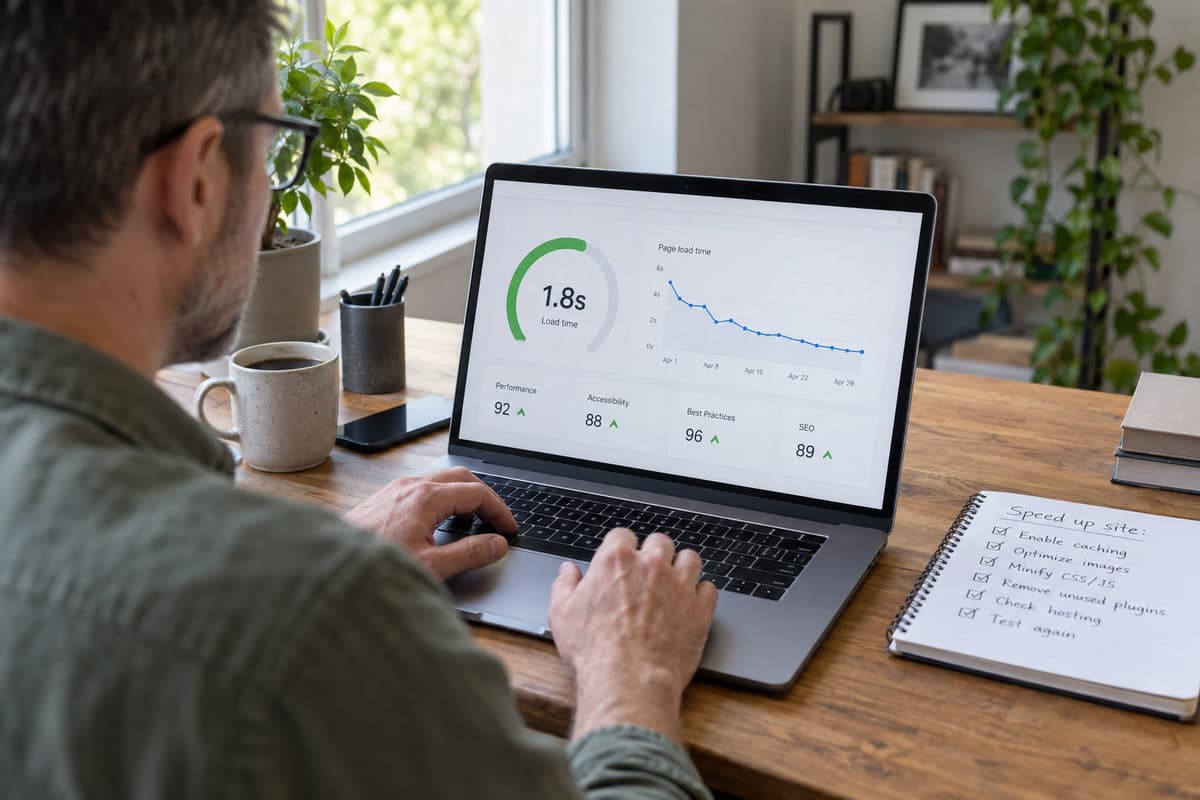
Open a blog post, a service page, a search result, and—if WooCommerce is in use—a product page and the checkout. Run PageSpeed Insights and WebPageTest. Look at TTFB, LCP, and total page weight. Don't obsess over a perfect score. A 95-score page can still feel sluggish.
Compare mobile and desktop. Compare the public site with the WordPress dashboard. If the dashboard is fast but the public site crawls, that points to caching or front-end assets. If both are slow, look at hosting, PHP, or the database.
2. Check Hosting and Server Response
If the browser waits a long time before anything appears, the server may be taking too long to build the page. That's TTFB. On decent hosting, TTFB should generally be under 600 ms. If it is over 1 second, there is likely a hosting or server problem.
Ask the host to check PHP workers, memory, CPU usage, slow database queries, and resource limits. More resources won't fix a badly behaving plugin, but not enough resources will make everything else harder.
WordPress's own performance guidance lists hosting, software configuration, and image size as major factors. Start there.
3. Add Page Caching Carefully
Without page caching, WordPress may run PHP and hit the database on every single request. Page caching stores a ready-to-serve version, so most visitors get a static file instead of a full WordPress build.
Check whether the host already offers server-level caching. If it does, use that first. If not, a caching plugin like WP Rocket, LiteSpeed Cache, or a similar option can help.
But don't cache everything. Shopping carts, checkout pages, account areas, and personalized content should be excluded from full-page caching. The official WordPress caching docs explain the different layers.
4. Resize and Compress Images
This is one of the easiest wins on most sites. Someone uploads a 4000 px photo straight from a camera, then displays it in an 800 px box. The browser downloads the huge file and shrinks it. That's waste.
Resize images to the dimensions actually displayed. Compress them. Use WebP or AVIF where supported. Lazy-load images below the fold, but don't lazy-load the main hero image—it usually hurts LCP.
If the homepage is over 3 MB, start here. A 6 MB homepage on a 4G connection is painful.
5. Audit Plugins Instead of Counting Them
Twenty lightweight plugins can outperform one badly written plugin. The real question isn't "how many plugins are installed?" It's "what does each plugin do on every page load?"
Delete what isn't used. On staging, deactivate suspected plugins one at a time and retest the same page. Pay attention to page-builder add-ons, backup plugins, complex filters, related-post plugins, sliders, security scanners, and anything that calls an external API.
Install Query Monitor. It shows slow queries, hooks, and scripts. That's how guessing stops.
6. Review the Theme and Page Builder
A theme can load fonts, icons, animations, and scripts a page never uses. Page builders can create deeply nested markup that makes the browser work harder.
Test a representative page with sliders, video backgrounds, and decorative animations removed. Cut down font families and weights. If possible, compare the site on staging with a default theme like Twenty Twenty-Four. That shows whether the theme is a major part of the problem.
7. Keep WordPress, PHP, Themes, and Plugins Current
Updates often include performance fixes. They also include security fixes. Don't skip them forever.
Make a backup. Check compatibility notes. Test on staging, especially for WooCommerce or membership sites. Check the PHP version too. PHP 8.2 or 8.3 is usually faster than old PHP 7.x, but don't force it if the theme or plugins aren't ready.
8. Investigate Database and Background Work
WordPress stores a lot in the database: posts, settings, revisions, transients, scheduled tasks, and plugin data. Over time, that adds up.
Check Tools → Site Health. Look at scheduled actions, logs, and any warnings. For larger sites, a developer can check slow queries, autoloaded options, repeated API calls, and background jobs.
Be careful with "clean everything" database plugins. Don't run one unless there is a verified backup and it is clear exactly what will be deleted.
9. Use a CDN and Browser Caching Where They Help
A CDN serves images, CSS, and JS from locations closer to visitors. Browser caching lets returning visitors reuse files that haven't changed.
These help most on international sites and media-heavy sites. But a CDN won't fix slow PHP or an overloaded database. Fix the origin server first. Then use the CDN to reduce distance and repeated transfers.
10. Monitor Performance After Every Change
Write down a baseline before optimizing. After each change, test the same URLs, device type, and location. Keep the change only if it improves real performance without breaking the page.
This is the part most people skip. Then five plugins get installed, the site gets faster, and there is no idea which one helped—or which one will break next week.
A Sensible Order for Most Websites
If it is unclear where to start, do it in this order:
- Back up the website.
- Test several pages while logged out.
- Check hosting response time and TTFB.
- Configure page caching.
- Optimize the largest images.
- Audit plugins and third-party scripts.
- Simplify the heaviest templates.
- Investigate database work if the site is still slow.
Final Thoughts
A fast WordPress site is usually boring: good hosting, page caching, compressed images, clean plugins, current PHP, and a theme that doesn't fight the content.
There's no magic setting. Do one thing at a time. It feels slower than activating ten optimization plugins at once, but it makes it clear what actually worked—and future problems get much easier to diagnose.
Share