WordPress Automatic Updates Not Working? Common Causes and Fixes
Find out why WordPress core, plugin, or theme updates are not running and fix cron, permissions, connectivity, and configuration problems.
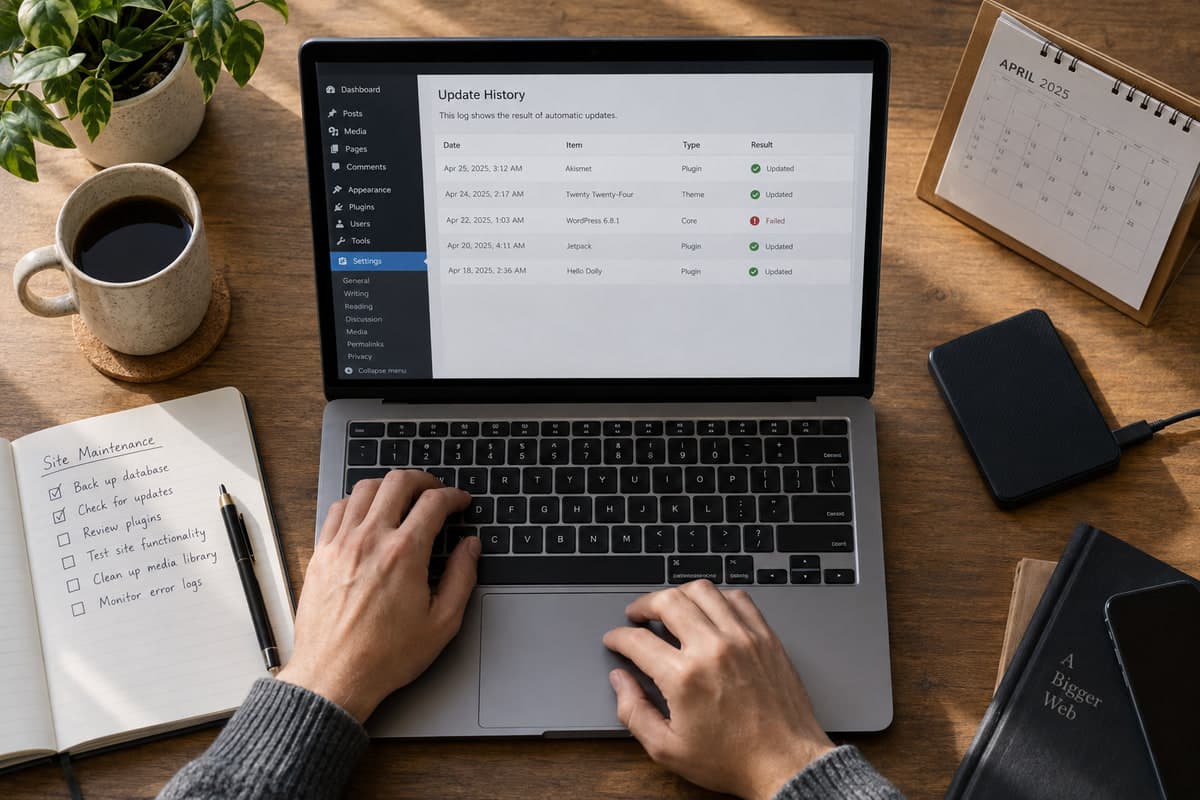
Automatic updates reduce the time a known security issue remains unpatched, but they still depend on several parts of the website working correctly. If updates never run—or repeatedly fail—the cause may be WP-Cron, file permissions, blocked connections, disk space, or a hosting policy.
Confirm What Should Update Automatically
Open Dashboard → Updates, Plugins, and Appearance → Themes. Check which components have automatic updates enabled.
WordPress normally handles minor core and security updates in the background. Plugin and theme auto-update settings can be enabled individually. Hosts or management tools may override what you see in the dashboard.
The official plugin and theme auto-update guide explains the available controls and notification emails.
Read the Update Email and Site Health Report
WordPress may email the administrator when an automatic update succeeds or fails. Preserve the failure message.
Then open Tools → Site Health. Look for warnings about background updates, WP-Cron, filesystem permissions, HTTPS, or communication with WordPress.org.
Check WP-Cron
Automatic tasks rely on WordPress scheduling. WP-Cron is normally triggered by page visits, so very low-traffic sites can run tasks late. A performance plugin, security setting, or DISABLE_WP_CRON constant may stop it entirely.
If WP-Cron is intentionally disabled, confirm that the host’s real cron job calls WordPress on a suitable schedule. Avoid running both systems excessively.
Verify File Permissions and Ownership
WordPress must be able to replace files in core, plugin, and theme directories. Incorrect ownership can cause credential prompts or failed writes.
Do not use universal write permissions as a shortcut. Ask your host to correct ownership for the web-server user.
Check Disk Space and Temporary Files
Updates need room to download and unpack packages. Review disk usage and inode limits in the hosting panel. Clear abandoned backups or cache files only after confirming they are safe to remove.
A stuck .maintenance file indicates an interrupted update. Our guide on fixing WordPress maintenance mode explains how to remove it and verify the update.
Confirm Outbound Connectivity
WordPress needs to reach update servers. Firewall rules, DNS problems, expired certificates, or restrictive WP_HTTP_BLOCK_EXTERNAL settings may block requests.
Ask your host to review outbound HTTP errors. Do not disable the firewall across the whole server just to test one connection.
Test for Plugin Conflicts
Management, security, and update-control plugins can change automatic-update behavior. Reproduce the issue on staging with those plugins disabled, then re-enable them one by one.
Update Manually While Investigating
Do not leave vulnerable software outdated. Create a backup, test compatibility, and apply the update manually through the dashboard or your host while you resolve automation.
Conclusion
When automatic updates fail, check the setting first, then WP-Cron, Site Health, file ownership, storage, and outbound connections. Keep a backup and update manually so troubleshooting does not become an excuse to postpone security maintenance.
Share