WordPress Stuck in Maintenance Mode? How to Get Your Website Back
Remove the “Briefly unavailable for scheduled maintenance” message and learn why WordPress updates sometimes leave a website stuck.
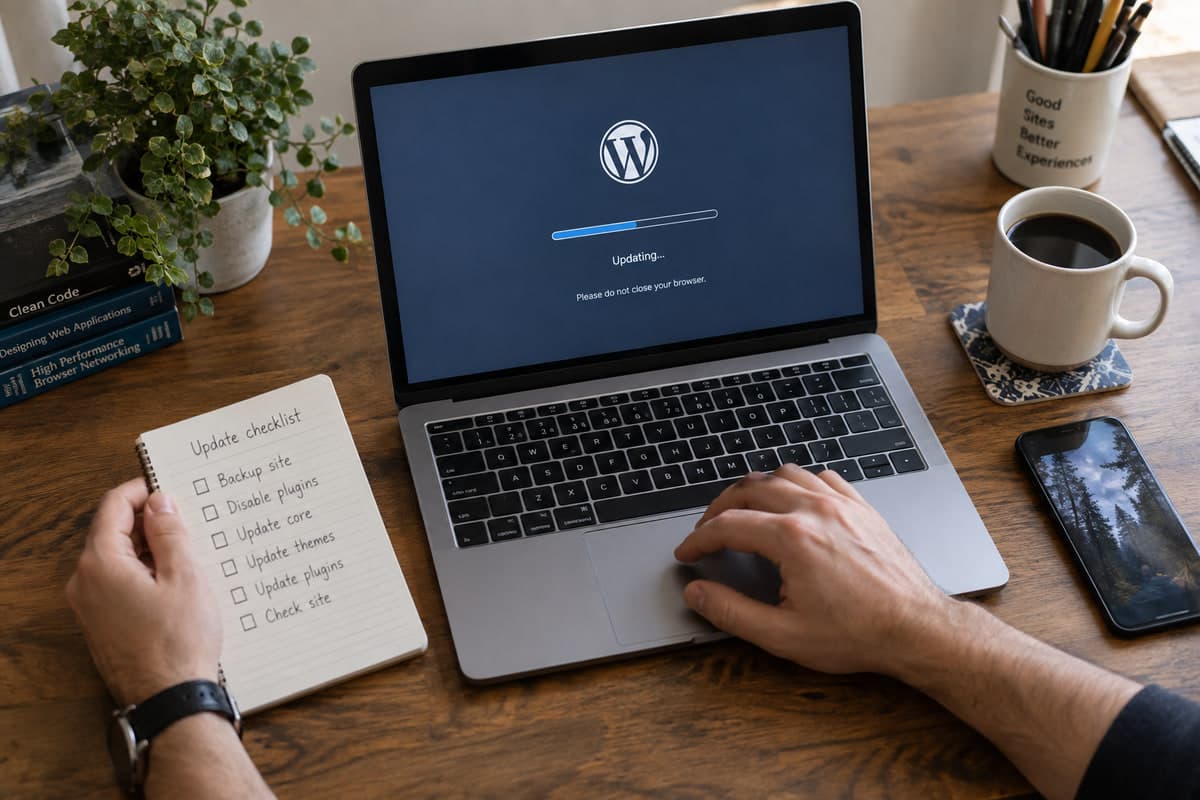
"Briefly unavailable for scheduled maintenance. Check back in a minute."
The message should disappear when an update finishes. It doesn't. WordPress left behind a temporary file called .maintenance. In most cases, this is a two-minute fix. But the interrupted update itself may also be a problem, so do the fix and the check together.
Fix 1: Wait Five Minutes, Then Check
Large updates on slow hosting can take a while. Wait five to ten minutes, then reload the site in a private window.
Don't start another update while the first one might still be running. That makes things worse.
If the message is still there, keep reading.
Fix 2: Delete the .maintenance File
Connect via SFTP or use your hosting file manager. Go to the WordPress root folder—the one containing wp-admin, wp-content, and wp-includes.
Enable "show hidden files" in your file manager. Then find:
.maintenanceDelete that file. Reload the site.
If you can't find the file, confirm you're in the right WordPress installation and that hidden files are visible.
WordPress documents this in its common errors guide.
Fix 3: Check Whether the Update Actually Finished
Deleting .maintenance removes the message. It doesn't mean the update completed.
Go to Dashboard → Updates. Check WordPress core, plugins, themes, and translations. Update one item at a time. After each update, load the homepage and the dashboard.
If you see a critical error, the interrupted update left a plugin or theme incomplete. Restore that component from a clean download or roll back your backup. Never mix files from different versions.
Fix 4: Find Out Why the Update Stopped
If this keeps happening, the underlying cause matters. Check these:
- Disk space: Check usage in the hosting panel. Updates need free space to unpack files.
- PHP timeout: Shared hosts often cap PHP execution at 30 or 60 seconds. Large updates exceed that.
- File permissions: WordPress needs write access to replace files. Wrong ownership blocks the update.
- Browser tab closed: The update process runs on the server, but closing the tab mid-request can interrupt it on some hosts.
- Security rules: ModSecurity or a WAF can block update requests.
Ask the host to check the PHP error log for the exact failure. Look for Maximum execution time exceeded or Disk quota exceeded.
Fix 5: Prevent the Next Lock
Before the next round of updates:
- Create a full backup (files and database) or a hosting snapshot
- Update during low-traffic hours
- Update plugins and themes one at a time, not "Update All"
- Test major updates on staging first
- Keep the update tab open until WordPress confirms completion
- Check disk space before starting
That's It
A stuck maintenance message is almost always the leftover .maintenance file. Delete it, then confirm the interrupted update actually finished. That second step is what keeps a simple lock from turning into a broken site.
Share